Skip to content
English
Adult portraits framing a pink and purple one-on-one video call illustration.

A SIMPLE START. A NEW CONVERSATION.

Start a 1v1 video call on Mixu.

One person. Face to face. Get ready for your next conversation with a clear guide to signing in, setting up your device, and starting a call.

18+ · Sign-in required

ONE PERSON AT A TIME

What is a 1v1 video call?

A 1v1 video call is a live conversation between two people using a camera and microphone. Both people can see and hear each other without joining a group call.

On Mixu, this is a way for adults to meet new people. This guide takes you through the practical steps before, during, and after a call.

YOUR FIRST CALL, STEP BY STEP

How to start a 1v1 video call on Mixu.

Know what happens next.
Take it one step at a time.

  1. 01

    Sign in to your account

    Open Mixu and choose a sign-in option shown on the screen. Sign in before trying to start a conversation.

  2. 02

    Choose a way to connect

    Explore the profiles and connection options available in your account. Check the displayed coin or VIP requirements before you continue.

  3. 03

    Enable video and audio

    When Mixu asks, allow camera and microphone access for the call. Check your device’s selected camera and microphone if something is not working.

  4. 04

    Say hello, then see where it goes

    Start with a friendly introduction and give the other person time to respond. You can end the conversation whenever you choose.

Open Mixu & Start a Call

Connection options and availability may differ by location and account.

A MINUTE OF PREPARATION

Before the call, check these three.

A little preparation helps you focus on the person, rather than your settings.

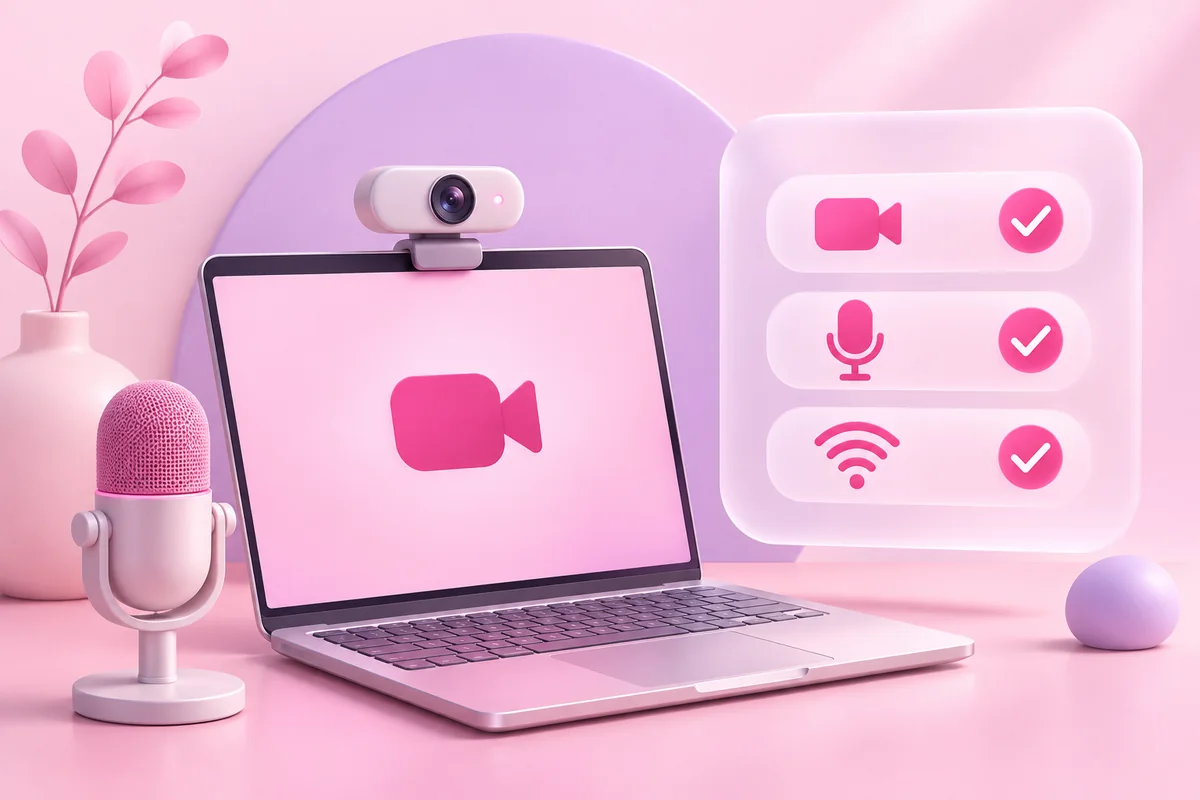
Laptop, camera, microphone, and internet connection checklist for a video call.

This is a preparation checklist. It does not test your device or request camera access.

YOUR CALL CHECKLIST0 of 3 ready

Tick each item as you prepare. You can open Mixu whenever you’re ready.

Continue to Mixu

CHOOSE YOUR SETUP

A browser or the app. The same preparation.

Make a video call in a browser

Open Mixu in a compatible browser, sign in, and allow the required camera and microphone permissions. Website availability and features may vary by region and device.

If you use a shared device, sign out after your conversation and review any permissions you enabled.

Open Mixu in your browser

Prefer using the Mixu app?

Visit the official download page to check the available app and store options. Review device requirements before installing, then sign in and check the call options shown in the app.

Using the app does not mean every call or feature is free. Review the displayed access and coin details.

Download the Mixu App

NO GUESSING BEFORE YOU CONNECT

Does a call require coins?

Mixu includes coin-based and VIP features. The amount of coins or access required depends on the feature you choose and the details displayed in your account.

  • Review any coin or VIP requirement before starting.
  • Read the terms shown with a promotional offer.
  • Do not assume that a free download means unlimited free video calls.

For help with a specific charge or account issue, contact Mixu Support.

WHEN SOMETHING GETS IN THE WAY

Camera off? Sound missing? Start here.

A few practical checks before you try again.

Camera, microphone, and wireless connection symbols illustrating video call troubleshooting.
My camera is blocked or the screen is black

Check that Mixu has camera permission in your browser and device settings. Select the camera you intend to use and make sure another app is not occupying it.

If the problem continues, close other camera apps and reopen Mixu. Rejoin only when your camera is ready; a black screen does not by itself confirm why a call failed.

I cannot hear the other person

Check your device volume, the selected speaker or headphones, and whether an audio device is connected. Ask the other person to check their microphone and mute settings.

If they cannot hear you, check your own microphone permission and selected input. Reconnect your headphones if the sound is going to the wrong device.

The video is slow or the call disconnects

Check your internet connection and pause other activity using a lot of bandwidth. If possible, try a more stable connection before starting again.

Call quality can be affected by either person’s device or network. If the problem keeps happening, note your device, browser, and what you observed, then contact Mixu Support.

A BETTER CONVERSATION STARTS WITH YOU

Be present. Keep your boundaries.

Try an easy opener: “What have you been enjoying lately?” Listen, take turns, and respect what the other person chooses to share.

You can leave a call that feels uncomfortable. Keep passwords, payment details, and other sensitive information private, and use the reporting options available in Mixu for inappropriate behavior.

Read the Community Guidelines

1v1 video call or 1v1 video chat?

These terms often describe the same live, one-to-one video experience. “Call” emphasizes starting a connection; “chat” emphasizes the conversation. For a broader introduction to the format, explore our 1v1 video chat guide.

YOUR CALL QUESTIONS, ANSWERED

Before your first video call.

Practical answers about setup,
access, and getting connected.

How do I start a 1v1 video call on Mixu?

Sign in to Mixu, choose an available way to connect, and review any coin or VIP requirements. Allow camera and microphone access when prompted, then follow the steps shown to begin your conversation.

Can I make a 1v1 video call without an app?

You can access Mixu through its website using a compatible browser where the service is available. Sign in and allow the camera and microphone permissions needed for video. Availability and features may vary by region and device.

Do I need to sign in before calling?

Yes. Use an available sign-in option shown by Mixu before starting your conversation. The options displayed on the sign-in screen are the ones currently available to you.

Are 1v1 video calls on Mixu free?

Do not assume every call is free. Mixu includes coin-based and VIP features; requirements depend on the feature and the details displayed in your account. Check those details and any promotional terms before starting.

What do I need for an online video call?

You need an eligible Mixu account, a compatible device, a working camera and microphone, an internet connection, and the required permissions. Choose a well-lit place and check your audio before starting.

Why is my camera or microphone not working?

Check the browser and device permissions, make sure the correct camera and microphone are selected, and close other apps that may be using them. For persistent problems, contact Mixu Support with your device, browser, and a description of the issue.

Can I end a call whenever I want?

You can end a conversation when you choose. If another person’s behavior makes you uncomfortable, leave the call and use the reporting options available in Mixu.

Is a one-on-one video call the same as a group call?

No. A one-on-one video call connects two people. A group call involves several participants. This page describes Mixu’s one-to-one calling experience.

Can I message someone after the call?

You can use Mixu Messages to continue conversations with people you have met, subject to the options and access requirements shown in your account.

Who can use Mixu video calling?

Mixu is for adults aged 18 and over who meet the eligibility requirements in its Terms of Service. You must also follow the Community Guidelines.

READY WHEN YOU ARE

Set up. Sign in. Say hello.

You bring the conversation.
Start your next one-on-one video call on Mixu.

Start a 1v1 Video Call

18+ · Sign-in required